
Backing up your photos and files is one of the smartest things you can do to protect your valuable digital memories and important documents. Whether you’re a casual smartphone user, a professional photographer, or just someone who wants to keep your digital life safe, having a reliable backup system is essential.
In this post, we’ll walk you through the basics of backing up your photos and files, explain different backup methods, and provide practical tips to make the process easy and effective.
Why Backing Up Your Data Matters
Digital files can be lost in many ways—accidental deletion, hardware failure, theft, natural disasters, or even software corruption. When important photos or documents disappear, it can be frustrating and sometimes impossible to recover them.
Backing up means creating copies of your data and storing them separately from the original files. This way, even if something happens to your device, you’ll still have access to your files.
Types of Backup Methods
There are several ways to back up your photos and files. The best approach is often to combine more than one method for extra security.
1. External Hard Drives or USB Flash Drives
One of the simplest ways is to copy your files to an external hard drive or a USB flash drive. These devices are portable, affordable, and easy to use.
– Pros:
– Fast transfer speeds
– No internet required
– Large storage capacity
– Cons:
– Can be lost, stolen, or damaged
– Requires manual backup unless automated software is used
2. Cloud Storage Services
Cloud services like Google Drive, Dropbox, Microsoft OneDrive, and Apple iCloud allow you to save your files on secure online servers.
– Pros:
– Accessible from any device with internet
– Automatic syncing and backups
– Often includes file versioning (previous versions)
– Cons:
– Requires internet connection
– Limited free storage (may need to pay for more space)
– Privacy concerns, depending on service
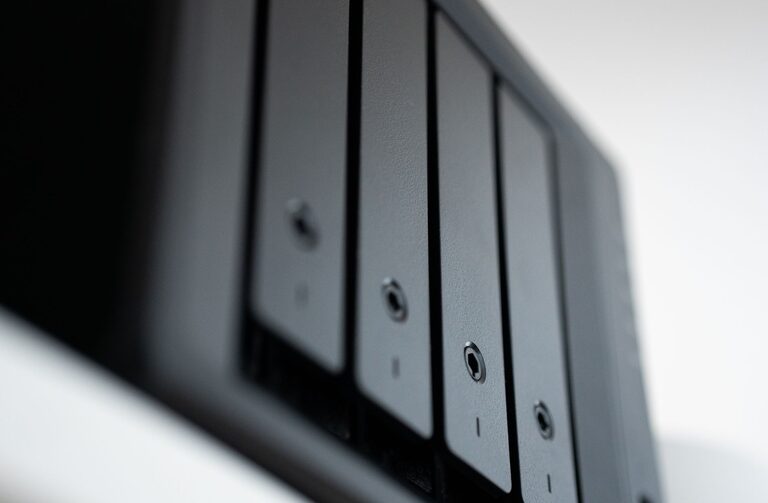
3. Network Attached Storage (NAS)
For tech-savvy users or small businesses, NAS devices offer a personal cloud at home or in the office, allowing multiple users to back up and share files.
– Pros:
– Large storage and fast local access
– Can be configured for automatic backups
– No monthly fees after purchase
– Cons:
– More expensive upfront
– Requires some technical setup and maintenance
4. Optical Media (CDs/DVDs)
Although less common today, burning files to CDs or DVDs can be a backup option for smaller amounts of data.
– Pros:
– Physical copy you control
– Useful for archival purposes
– Cons:
– Limited storage capacity
– Media can degrade over time
– Slower process than other methods
How to Back Up Your Photos and Files: Step-by-Step
Step 1: Organize Your Files
Start by organizing your photos and files into folders that make sense to you. Clear organization will make backups easier and faster.
Step 2: Choose Your Backup Method(s)
Decide whether you want to use an external drive, cloud service, or both. For most people, a combination of an external hard drive and cloud storage offers balanced protection.
Step 3: Back Up Regularly
Set a schedule to back up your files frequently. This could be daily, weekly, or monthly depending on how often you add or change files.
– For external drives, plug them in and copy your files according to your schedule.
– For cloud services, enable automatic syncing if available.
Step 4: Automate When Possible
Many backup tools and apps can automate the process, saving you time and reducing the chance of human error.
Examples include:
– Backup software like Windows File History or Time Machine for Mac
– Cloud backup apps on smartphones and computers
Step 5: Verify Your Backups
Occasionally, check your backup copies to make sure the files are accessible and complete. This ensures your backup strategy is working properly.
Tips for Safe Backup Practices
– Use the 3-2-1 Rule: Keep three copies of your files, on two different types of media, with one copy stored offsite (like a cloud service).
– Encrypt Sensitive Data: If your files are private, consider encrypting them before backup for extra security.
– Label Your Backup Devices: Clearly label external drives or discs with dates and contents so you can find what you need quickly.
– Keep Backup Devices in a Safe Place: Protect your backups from physical damage or theft.
– Update Backup Software: Keep your backup tools updated to avoid bugs or security issues.
Conclusion
Backing up your photos and files doesn’t have to be complicated. By understanding your options and setting up a simple routine, you can ensure your digital memories and important documents are safe no matter what happens to your devices.
Start today with one method, and build your backup strategy from there. Your future self will thank you!